
How to Convert PDF to Word Without Losing Formatting
The Ultimate Guide for Students, Office employees and Everyone
In this todays era, PDFs are widely used for sharing documents due to their professional look and consistent formatting. But what if you need to edit a PDF files? The easiest solution is converting it into a Word document. However, most people face some major problem on this process: losing the original formatting. Whether you are a student working on an assignment, an office employee editing reports, or a freelancer handling client files, formatting errors can be frustrating and time consuming. In this ultimate guide, we will walk you through step by step methods to convert PDF to Word without losing formatting, using free tools available online no technical skills needed!
Table of Contents
- Why We Lose Formatting When Converting PDF to Word?
- What we Look for in a Good PDF to Word Converter?
- Guaranteed Methods Convert PDF to Word Without Losing Formatting
- Method 1: Using PDFToolNest.com (Recommended Free Tool)
- Method 2: Microsoft Word
- Method 3: Docs Google
- Method 4: Adobe Acrobat Reader
- Method 5: SmallPDF & Other Free Tools
- Tips to Preserve Formatting During Conversion
- Common Issues & How to Fix Them
- Who Can Advantages from These Tools?
- Frequently Asked Questions
- Final Thoughts
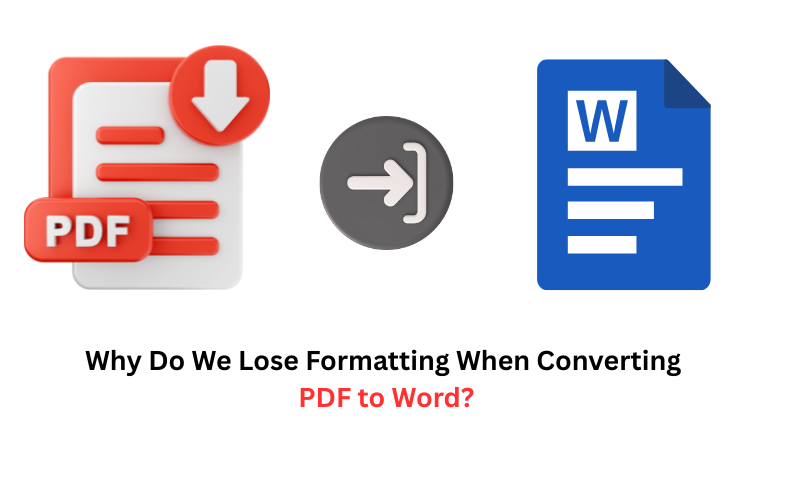
Why Do We Lose Formatting When Converting PDF to Word?
PDFs are designed to be static and uneditable, while Word documents are dynamic and flexible. When converting from a rigid layout “PDF” to an editable one “Word”, the following issues often occur:
- Font changes or missing fonts
- Image misalignment
- Table and paragraph shifts
- Header/footer loss
- Margin and spacing problems
The goal is to find a best tool or method that can understand and preserve the structure during conversion.
What to Look for in a Good PDF to Word Converter?
Not all PDF to Word converters are made equal. A good tool should:
- Maintain original layout and font styles
- Keep images and tables in the right position
- Work online without requiring installation
- Be easy to use for non-technical users
- Offer free conversion without watermarks
5 Guaranteed Methods to Convert PDF to Word Without Losing Formatting
Method 1: Using PDFToolNest.com (Highly Recommended Tool)
If you want a free, easy-to-use, and formatting-safe solution, PDFToolNest.com is your best bet.
Steps:
- Visit PDFToolNest.com
- Go to the “PDF to Word” tool section
- Upload your PDF file
- Click “Convert”
- Download the Word file — fully editable, with original formatting preserved!

⭐ Why Choose PDFToolNest?
- 100% Free
- No login or signup required
- Mobile and desktop friendly
- Perfect for students, teachers, freelancers, and office employes
Method 2: Microsoft Word
Microsoft Word (2013 or any version) has a built in feature to open PDF files directly.
Steps:
- Open Microsoft Word
- Click on File > Open
- Choose your PDF file
- Word will display a message: “Word will now convert your PDF to an editable document.”
- Click OK
Note: Formatting is usually preserved, but large PDFs or documents with complex designs may need some manual adjustment.
Method 3: Google Docs
Google Docs offers a cloud-based way to convert PDF to Word.
Steps:
- Go to Google Drive
- Upload your PDF
- Right click the PDF and choose Open with Google Docs
- Once opened, go to the File > Download > Microsoft Word (docx)
This is especially useful for Chromebook users without Microsoft Word installed.
Method 4. Adobe Acrobat Reader – Free Version
Adobe is the creator of the PDF format, and their official tool does offer basic level conversion (with limitations in the free version).
Steps:
- Open your PDF file in Adobe Acrobat Reader D-C
- Click on “Export PDF” (free for simple files)
- Choose Word as the output format
🔸 Warning: Some advanced options require a paid subscription.
📍 Method 5: SmallPDF & Other Online Tools
Other reliable tools include:
- SmallPDF.com
- ILovePDF.com
- PDFCandy.com
🔹 Pros:
- Simple to use
- No software installation
- Cloud-based
🔹 Cons:
- File size limitations
- Ads and watermarking in free versions
- Risk of uploading sensitive data online
🛠 4. Tips to Preserve Formatting During Conversion
Avoid scanned PDFs (use editable PDFs)
- Keep font sizes consistent throughout your document
- Use standard fonts like Arial, Times New Roman
- Make sure your PDF file is not password-protected
- Test with 1–2 pages before converting large documents
Common Issues & How to Fix Them
- Problem
- Solution
- Fonts are different
- Install missing fonts on your PC
- Tables misaligned
- Use table tools in Word to fix spacing
- Images out of place
- Use Word’s wrap text feature
- Extra blank pages
- Delete manually or adjust page breaks
Who Can Advantages from These Tools?
This article is written for everyone, not just tech-savvy users.
Students
- Convert eBooks and notes into editable formats
- Submit school assignments with professional formatting
Office employees
- Edit company documents, contracts, invoices
- Prepare reports faster without formatting issues
Freelancers
- Deliver to client files in multiple formats
- Save time & increase productivity
- Seniors and Non-Tech Users
- Simple tools like PDFToolNest.com need no training
- No need software to install, just drag-and-drop

FAQs
Q1: Can I convert an scanned PDF to Word?
Only if you use an Optical Character Recognition enabled tool like Adobe Pro or online OCR tools.
Q2: This PDFToolNest.com safe to use?
Yes, it does not store your data or files and ensures end to end encryption for your uploaded content.
Q3: Will images and tables stay in place?
👉 Yes, if you use the recommended tools like PDFToolNest or Word’s built-in converter.
Q4: Do I need to create an account to convert?
👉 No. PDFToolNest and Google Docs work without requiring login (Google Docs only needs Google account).
Q5: Are this guide valid for mobile users?
Absolutely! Tools like PDFToolNest are fully responsive and can be used on phones and tablets.
Now Final Thoughts
Converting PDF to Word without losing formatting is not a big challenge thanks to easy to use online tools and built in software features. You don’t need to be a tech wizard to convert documents professionally and quickly. PDFToolNest.com stands out as the best all-round solution for students, office workers, freelancers, and anyone needing a hassle-free conversion. So next time you’re stuck with a rigid PDF, remember this guide and convert it like a pro — without ruining the layout!